Saturday, May 31, 2014

create repo-metadata.sh


 create-repo-metadata.sh

 
#!/bin/sh

# This is for Redhat 64 bit versions of Linux with `createrepo` installed. If you
# do not have createrepo, you can install it with:
# yum install -y createrepo

# Change DESTDIR path to RPMS directory of your repo
DESTDIR="/var/www/repo/rhel/6"

for ARCH in x86_64
do
    pushd ${DESTDIR}/${ARCH} >/dev/null 2>&1
        createrepo .
    popd >/dev/null 2>&1
done

how to create an rpm-repository.sh

how-to-create-an-rpm-repository.s 

 
# How to create an RPM repository

# This is for Redhat 64 bit versions of Linux. You can create your own RPM repository # to host your custom RPM packages.
#
# See "How to create an RPM from source with spec file" for more information.
# https://gist.github.com/1376973

# Step: 1
# Install createrepo

yum install -y createrepo

# Step: 2
# Create repo directories for hosting your rpms.
#
# Create your repository inside your base directory. You will also need some rpms for
# your repo. For this example, I am using RHEL6 and /var/www/repo as base directory.

mkdir -p /var/www/repo/rhel/6/{SRPMS,x86_64}

# Step: 3
# Create `create-repo-metadata` executable file
# 
# Use the `create-repo-metadata` command, which can create by downloading a shell
# script and making it an executable file. Make sure this file is in a directory in
# your $PATH. Run the command `echo $PATH` to list them. Install in /usr/local/bin
#
# IMPORTANT: In the script above, replace the path in 'DESTDIR' with:
# /var/www/repo/rhel/6

curl http://bit.ly/sZpx8f > /usr/local/bin/create-repo-metadata
chmod +x /usr/local/bin/create-repo-metadata

# Step: 4
# Create the repository metadata
#
# After creating the metadata, your repository will be ready for use

create-repo-metadata

# Tip!
#
# If you have made this repo publicly available, others can use this yum repo config
# file to update their own systems.
#
# Run `vi /etc/yum.repos.d/my.repo` to create the file

[myrepo]
name=My Repository
baseurl=http://mywebsite.com/rhel/6/$basesearch
enabled=1

# Then simply run `yum update` to install the rpms.

yum update

How To Configure Static IP On CentOS 6

  Linux Static IP

## Configure eth0
#
# vi /etc/sysconfig/network-scripts/ifcfg-eth0

DEVICE="eth0"
NM_CONTROLLED="yes"
ONBOOT=yes
HWADDR=A4:BA:DB:37:F1:04
TYPE=Ethernet
BOOTPROTO=static
NAME="System eth0"
UUID=5fb06bd0-0bb0-7ffb-45f1-d6edd65f3e03
IPADDR=192.168.1.44
NETMASK=255.255.255.0


## Configure Default Gateway
#
# vi /etc/sysconfig/network

NETWORKING=yes
HOSTNAME=centos6
GATEWAY=192.168.1.1


## Restart Network Interface
#

/etc/init.d/network restart

## Configure DNS Server
#
# vi /etc/resolv.conf

nameserver 8.8.8.8      # Replace with your nameserver ip
nameserver 192.168.1.1  # Replace with your nameserver ip

Friday, May 30, 2014

How to View DVDs on Your Hard Drive with Windows Media Center

This page shows how to view DVDs that are stored on your local hard drive using Windows Media Center (WMC), Vista version.
If you have created, ripped or backed up DVDs on your hard drive and tried to play them in the Vista version of Windows Media Center, you will probably find that it doesn't work. When you try to play a DVD, WMC tries to open the folder and tells you that it's empty. This is because, unlike previous versions of WMC, this isn't how you play DVD folders in Vista.

Rather than playing DVDs from the Videos section, you need to use the DVD Library which is located in the TV & Movies section. If this is not enabled (i.e. you can't see it in the main menu), you need to edit the registry.

Warning: Editing the registry is for experienced users only. Inexperienced users can cause serious damage.

Here is the required registry edit:
Registry key: HKEY_CURRENT_USER\Software\Microsoft\Windows\CurrentVersion\Media Center\Settings\DvdSettings
Registry value: ShowGallery
Registry value data type: REG_SZ
Registry value data: Gallery = enable My DVDs; Play = do not enable My DVDs
Change the setting to "Gallery", reboot the computer and restart Media Center. You should now see "dvd library" in the menu. To add DVDs, go to the information menu (click "i" on the remote control) and select "Add Movies".

Pros and Cons of Windows Media Center

Windows Media Center (MCE) has a lot of pros and cons compared to traditional home entertainment setups — it can be a source of both great joy and desperate frustration. It pays to understand what you're getting into before you decide to invest in this system.

Pros

If you've never used a system like this before, be prepared to get excited. MCE, like other similar computer-based systems, will change the way you think about home entertainment. It's hard to describe just how good it is having all your media stuff in one place. Trust me — you need to experience it to understand why it's the biggest thing to hit the home entertainment market since the VCR. Here are just some of the things you can do:
  • Access everything from one simple on-screen menu (and a single remote control): TV channels, radio stations, personal videos, music, photos and online media sources.
  • If you like, use a wireless keyboard and mouse to control the PC from your couch. You can also purchase the purpose-built MCE keyboard/mouse-pointer combo which gives you everything in a small, tidy unit.
  • Pause and resume live TV — phone calls in the middle of your favourite program are no longer a problem.
  • Use the scheduler to automatically record programs daily, weekly or whatever — you never have to remember to record and your favourite shows are always waiting for you. Programs that are on in the middle of the night or while you're at work are just as easy to watch as any other program.
  • Create custom playlists, video screensavers, photo slideshows, etc. You can even play music playlists with photo slideshows.
  • Flick between watching TV and surfing the net. If you see something you want to investigate while you're watching TV, pause the program, do some surfing, then pick up the program where you left off.
  • Add multiple tuner cards to record multiple channels at once (requires some computer expertise).
  • With a bit of practice you can virtually eliminate ad breaks from your life.
This biggest overall advantage is the ease with which you can do all these things. For example, you can timeshift with your VCR but you could never do what the MCE scheduler does — it's in another league. Keeping control of what the kids watch is no longer a task. You will be surprised at how often you look at your home videos or photo albums when it's just another button on your remote. The list goes on — half the fun is in realising what you can do that you never thought would be practical.

Cons

If you are lucky enough to live in a country fully supported by MCE, and your installation goes smoothly, there aren't too many nasty surprises. However this is relatively new technology and things may not go quite as well as promised. For example, if you live outside the USA you may find that you can't easily program all your local TV channels or find a local programming guide.
The company which sells you your MCE system may not have the technical support needed to fix problems. For example, many shops may be happy to sell you a MCE PC but do not have staff trained to deal with configuration and tuning issues. I recommend that you make the terms of your purchase clear before you hand over the cash — you expect a fully-functional system tuned to all your channels and ready for viewing.
You may be disappointed in the quality of the video picture. This can be tweaked, but depending on your computer system and your skills, you may find it hard to get the same quality as your TV tuner or DVD player. This is becoming less of an issues over time, and it is certainly possible to get excellent pictures, but it's an issue worth noting.
Be warned: Many problems reported by MCE users are not easy to fix and may require measures such as editing the registry. This is not for the technically faint-hearted!

Overview of Windows Media Center

Windows Media Center Edition (MCE) is a special version of Windows designed to drive your home entertainment system. It's basically like a normal PC running Windows, but it uses your TV as a monitor and your sound system for audio.
These are the basic components:
 
  • PC with TV tuner card and DVD drive, running Windows Media Center Edition
  • Monitor or television set
  • Sound system (optional — you could use the TV's speakers)
  • Remote control
  • Wireless keyboard & mouse (optional)

Features

MCE consists of 6 main areas, all accessed from the main menu:
  1. My DVD
    Play DVDs using the PC's DVD drive.
  2. My Videos
    Save your favourite videos on hard drive and organise them in folders for easy access.
  3. My Pictures
    Save photos in folders, organise into albums and create slideshows.
  4. My TV
    View live or recorded TV programs. Live TV allows you to pause, rewind and resume programs. Recorded TV includes a scheduler to automatically record and organise saved programs.
  5. My Music
    Save music in folders, retrieve album information from the net, create playlists.
  6. Radio
    Program your favourite radio stations.
  7. Online Spotlight
    Get access to online content (not all countries are supported).

Remote Control

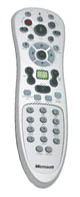
The official MCE remote control is the last remote control you'll ever need (well, maybe). Once you have your system set up you can control everything from here.
The remote control functions adapt to the area of MCE you are using, for example, the stop/play buttons work the same for live TV as recorded music. The up/down/left/right buttons have a whole range of functions depending on what you're doing, but it's surprisingly intuitive so there's no need to be intimidated.
Other common functions include:
  • Direct access to all main areas of MCE.
  • Manage recordings, playlists, etc.
  • Enter text characters when necessary.
  • Start up Windows Media Center, shut down the PC.
While the remote can control virtually every aspect of MCE, you will still need a keyboard if you want to use the computer's other features such as web browsing and running other applications.

Plugins & Additions

There are a range of official and unofficial add-ons for Windows Media Center. Common examples include picture enhancement, advanced scheduling, games, etc.
These applications are changing constantly — you should search the Internet for the current favourites.

Cost

The cost is around the same price as a decent home PC. Assuming you already have a suitable TV you don't need to buy a monitor — this compensates for having to include a decent amount of RAM and tuner card(s).

Encrypted Files in Windows

If you experience any of the following problems, you may be dealing with an encrypted file:
If a file name is shown in green in your Windows file manager, it's encrypted.

  • One or more files have turned green in My Computer (Windows Explorer).
  • You are unable to copy, move or otherwise alter a file.
  • You get a message saying you do not have permission to open or edit a file, even as Administrator.


What is an encrypted file?

A file that has been encoded with a special "key" to prevent unauthorized access.

How to find encrypted files

To locate all encrypted files on your system, open a command prompt and type the following command, then press the Enter key:
cipher /u /n

How do I get control of this file back?

Warning: It may not be possible to recover the file. Try these steps:
  1. Right-click the file and select Properties.
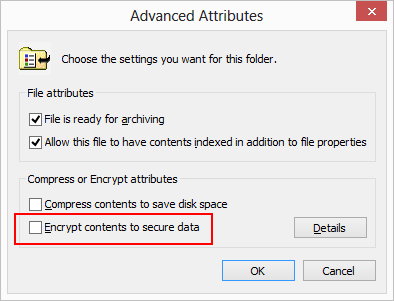
  2. Select Advanced (in the General tab).
  3. Uncheck Encrypt contents to secure data.
  4. Click OK. With any luck, the file name will turn from green to black and you'll be back in control.
Advanced Attributes

What if this doesn't work?

If you still see error messages telling you that permission is denied, and you are unable to remove the encryption, you have a more serious problem. Most likely the file was encrypted by someone else or you have copied the file to a new computer.
The next step is to open a command prompt and type the following command, then press the Enter key. This will find all the encrypted files on your system and attempt to update the file encryption key or recovery keys.
cipher /u
Read the output from the window to see if you've been successful. If not, the only remaining hope is to find the original encryption key. Hopefully you are able to use a backup of the key, but you'll need to know where it is.
Unfortunately, in some cases you won't have the key. For example, if you moved to a new computer without making a backup of the encryption key, and you no longer have access to the old computer, you're out of luck. In such cases the file is irretrievable.