Wednesday, November 16, 2011

How to Fix Lag Issues with ATI Proprietary Graphic Drivers (fglrx) in Ubuntu 11.10


The lag issue with ATI proprietary graphic drivers in Ubuntu 11.04 has not been solved and the problem exists in Ubuntu 11.10 too.

The fix is simple. Just install and go to Compiz Config Settings Manager and disable Sync To Vblank in OpenGL plugin as shown below in screenshot.


This will automatically change some settings in ATI Catalyst Control Center. However, make sure that 'Tear free' and ' Wait for vertical refresh' are disabled as shown in screenshots below.


Meet Unico, The New GTK3 Theme Engine in Ubuntu 11.10

 Gnome 3 stack is steadily landing into Oneiric. Work is also being done to port default themes Ambiance and Radiance to GTK3.

Light themes in Oneiric will most likely use Unico theme engine and not Murrine as some style guidelines for GTK3 themes have changed. Unico was actively developed in past but the work stopped as the new overlay scrollbars in Natty took precedence. Unico engine is already present in Official Ubuntu 11.04 repositories but that should be only meant for testing purposes as it is far from being finished. However, the development has resumed now.

Unico Description in Launchpad

Unico is a Gtk+ engine that aims to be the more complete yet powerful theming engine for Gtk+ 3.0 and newer. It’s the first Gtk+ engine written with Gtk+ style context APIs in mind, using CSS as first class citizen.

No more information about Unico is available as of now. The package has been uploaded to Oneiric repositories only two days back. 

A new Ambiance theme (work-in-progress) which is based on Unico is available. I will post installation instructions with some screenshots tomorrow after testing it on one of my systems as I am travelling yet again and will reach my office tomorrow morning. So if you are using highly unstable and far from complete pre-alpha of Ubuntu 11.10 on a system which is NOT your production machine and are willing to get burnt, stay tuned.

Linux Mint 12 “Lisa” RC released!


The team is proud to announce the release of Linux Mint 12 “Lisa” RC.

Linux Mint 12 Preview


I would like to apologize to the community, the media, and the journalists who wrote to us to know more about our upcoming release. We’ve been extremely secretive and 3 weeks past the Ubuntu release it’s still unclear for most people exactly what the next Linux Mint will look like. The reason we’ve been so silent is because we didn’t want to promise something we could not guarantee. Today we’re finally ready to give you an in-depth preview of Linux Mint 12, codename “Lisa”. I hope you’ll enjoy it and I look forward to reading your feedback.

Gnome 2 vs new desktops

In Linux Mint 11 we made the decision to keep Gnome 2.32. The traditional Gnome desktop, although it’s not actively developed by the Gnome development team anymore, is still by far the most popular desktop within the Linux community. As other distributions adopted new desktops such as Unity and Gnome 3, many users felt alienated and consequently migrated to Linux Mint. We recorded a 40% increase in a single month and we’re now quickly catching up with Ubuntu for the number #1 spot within the Linux desktop market.
As much as we’d like to keep Gnome 2.32 a little while longer we need to look forward and embrace new technologies. This doesn’t mean we need to change the way people use their desktops, not at all, it means we need to try and do our best for people to feel at home again, but on top of a brand new base, a new layer of technology, one that is actively supported upstream and that can be maintained properly going forward.
From a technological point of view, Gnome 3 is a fantastic desktop, and it’s getting better with every new release. It will take time for Linux Mint to develop a Gnome 3 desktop that is on-par with what we had with Gnome 2, but eventually we’ll be able to do much more with it than was possible with the traditional desktop.
With this in mind, the future of Linux Mint is Gnome 3, the present of Linux Mint is a simple question: “How do we make people like Gnome 3? And what do we provide as an alternative to those who still do not want to change?”.

Gnome 3 and MGSE

Gnome 3 is shiny, elegant and modern looking. It’s a sleek desktop but it comes with a few problems:
  • It changes the way people use their computer
  • It’s application-centric, not task-centric (you switch between applications, not windows)
  • It doesn’t do multi-tasking well (you can’t see opened windows, system tray icons, etc..)
We’ve been using application menus, window lists and other traditional desktop features for as far as I can remember. It looked different in KDE, Xfce, or even Windows and Mac OS, but it was similar. Gnome 3 is changing all that and is developing a better way for us to interact with our computer. From our point of view here at Linux Mint, we’re not sure they’re right, and we’re not sure they’re wrong either. What we’re sure of, is that if people aren’t given the choice they will be frustrated and our vision of an Operating System is that your computer should work for you and make you feel comfortable. So with this in mind, Gnome 3 in Linux Mint 12 needs to let you interact with your computer in two different ways: the traditional way, and the new way, and it’s up to you to decide which way you want to use.
For this, we developed “MGSE” (Mint Gnome Shell Extensions), which is a desktop layer on top of Gnome 3 that makes it possible for you to use Gnome 3 in a traditional way. You can disable all components within MGSE to get a pure Gnome 3 experience, or you can enable all of them to get a Gnome 3 desktop that is similar to what you’ve been using before. Of course you can also pick and only enable the components you like to design your own desktop.
The main features in MGSE are:
  • The bottom panel
  • The application menu
  • The window list
  • A task-centric desktop (i.e. you switch between windows, not applications)
  • Visible system tray icons
MGSE also includes additional extensions such as a media player indicator, and multiple enhancements to Gnome 3.
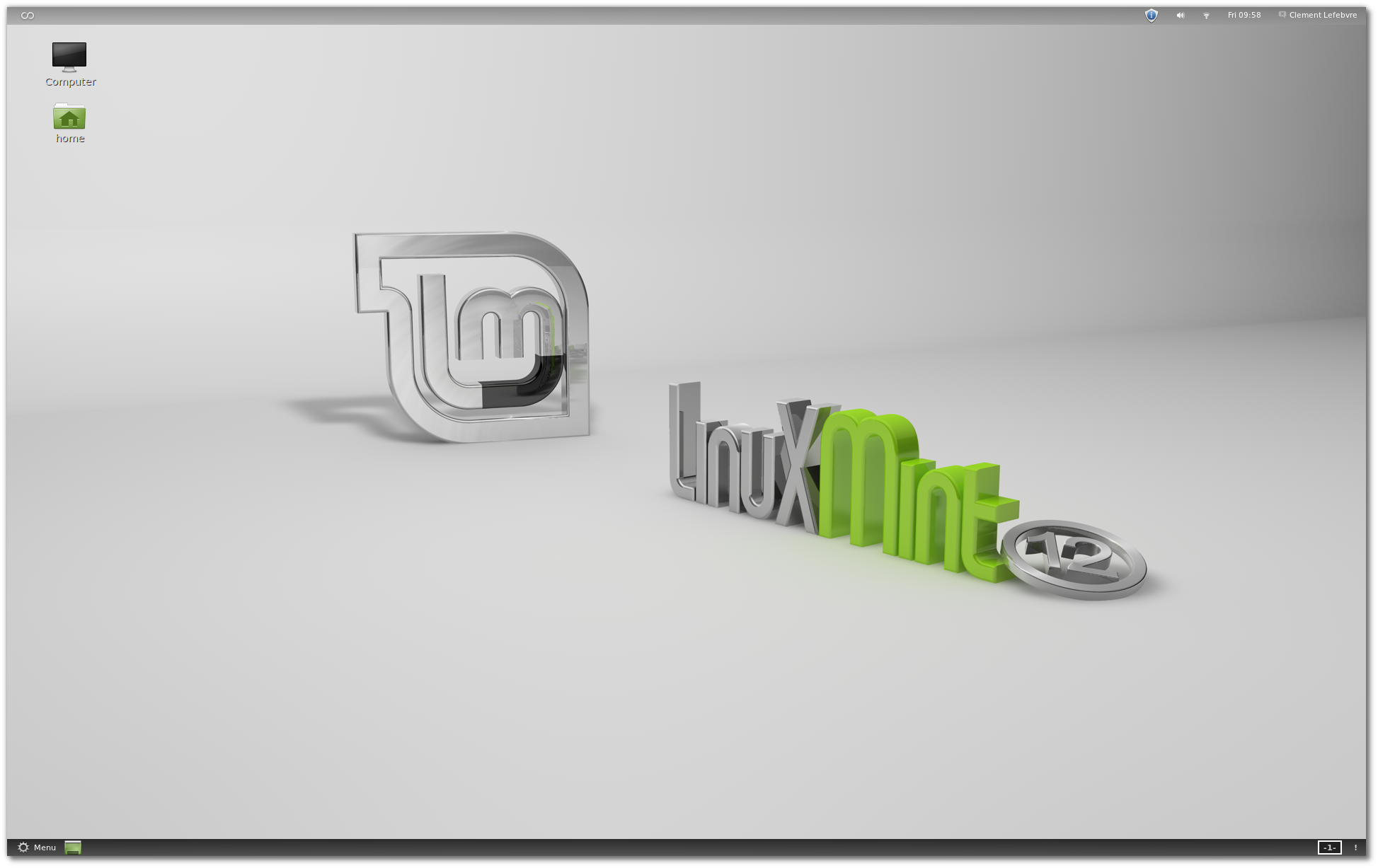
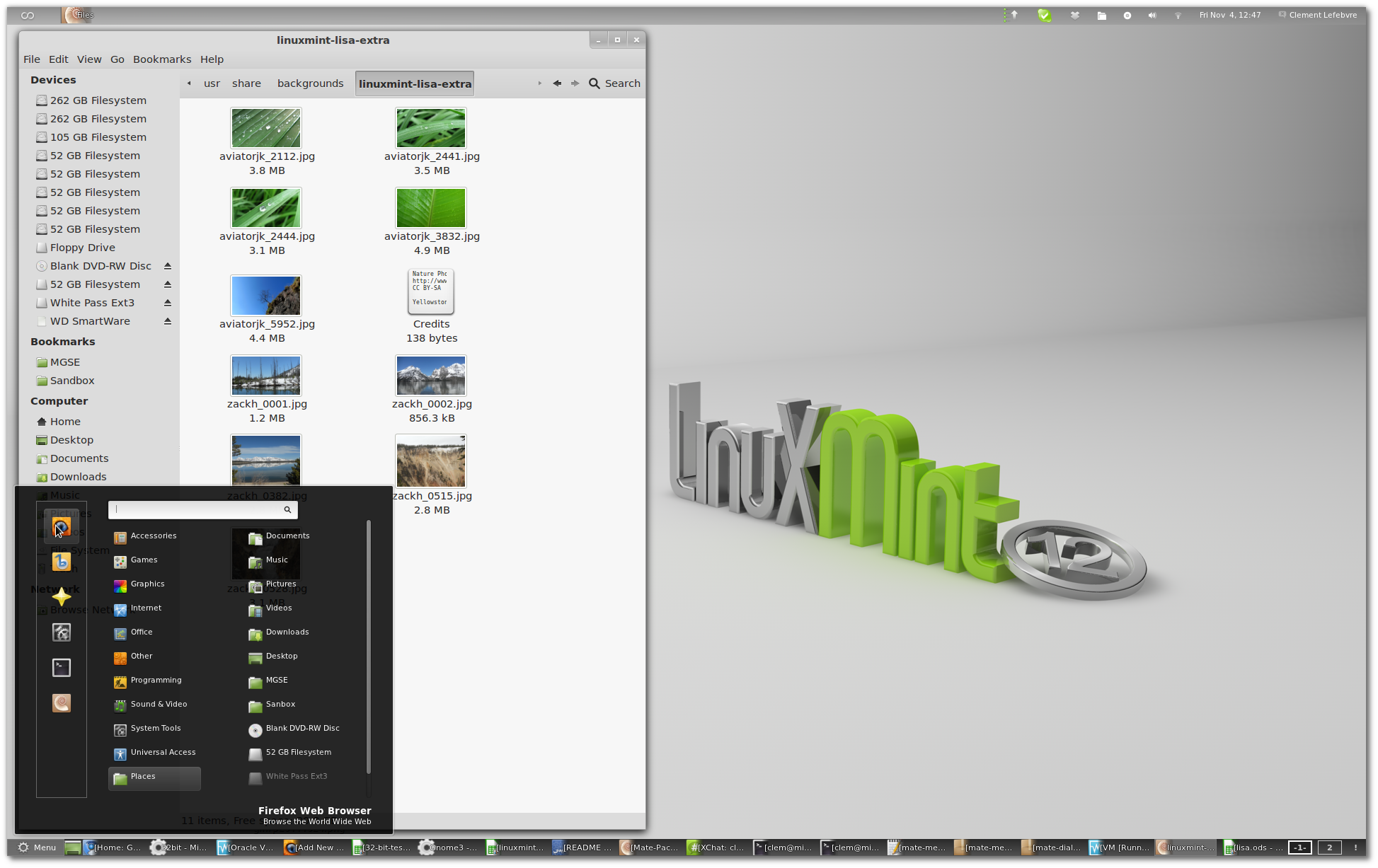
Here is what it looks like (click on the screenshot to make it bigger):

17 Top Rated Applications in Ubuntu Software Center You Should Have in Natty Narwhal


Things You Should Do After Installing New Ubuntu 11.10 Oneiric Ocelot

Ubuntu 11.10 Oneiric Ocelot has been released now. As with every release, we write about list of things you should immediately do after a fresh installation. Here is one for Oneiric. 
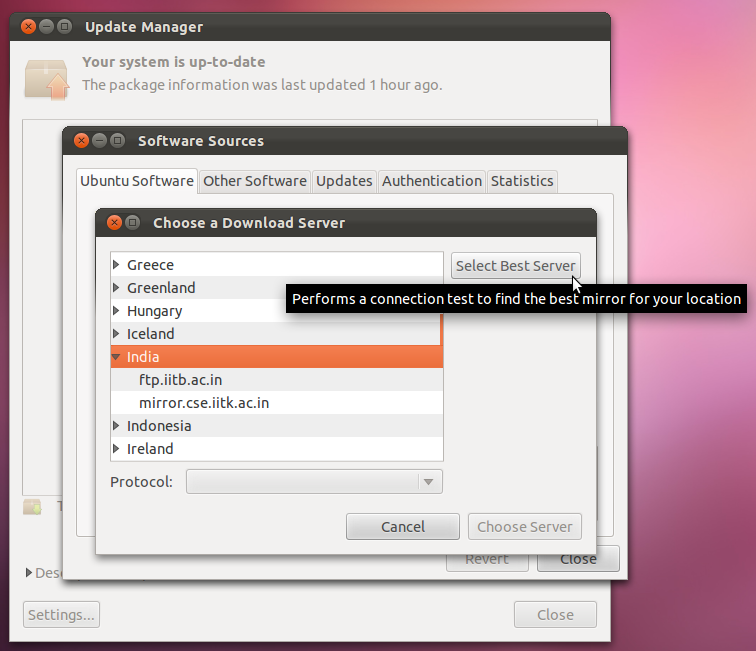
  • Ubuntu 11.10 installer allows you to install updates and refresh repositories from installer itself, if you are connected to the Internet. If you skip this part, later you should update your system and repositories. To do that, just launch update manager from dash menu. If you want to have faster updates, select a server near you or start the test which will automatically set a best server for you.

  • Go to additional drivers and install new drivers as required. If you are using ATI/AMD proprietary drivers, read this to fix the lag issue.
  • Install Ubuntu Restricted Extras from Ubuntu Software Center to add support for flash, java and mp3 playback. If you already installed updates and third party software during installation, you can skip this step.
  • Add support for encrypted DVD by running following commands: sudo apt-get install libdvdread4 and sudo /usr/share/doc/libdvdread4/install-css.sh
  • Install Compiz Config Settings Manager to customize Unity interface. You can tweak launcher size, panel transparency and many other things.
  • If you want to add support for Systray or Notification Area which has been disabled in Unity, install and launch dconf-editor from Ubuntu Software Center. Now to enable it just add an extra string 'all' under Desktop > Unity > Panel as shown in screenshot below (requires a logout to work). To revert, just click on 'Set to Default'.
  • Install your favorite indicators. A list of indicators with installation instructions can be found on Ask Ubuntu.
  • Add custom quicklists support to favorite apps. Many quicklists and their installation instructions can be found here.
  • Add global menu support for LibreOffice by running following command: sudo apt-get install lo-menubar
  • There are many handy keyboard shortcuts for quickly performing a task. A list of all these shortcuts can be found here. My personal favorite is Super for launching dash menu and then quickly switching between lenses using TAB key.
  • Browse Ubuntu Software Center for thousands of apps.
  • Install the package gnome-sushi to quickly preview files by hitting Space key in Nautilus file manager.
  • Latest Gnome Shell 3.2 and Classic Gnome are available in Ubuntu repositories. To install Gnome Shell run sudo apt-get install gnome-shell. To install classic two panel session run the following command: sudo apt-get install gnome-session-fallback(rendering issues in screenshot below is an ATI proprietary driver issue)
  • The ability to create custom launcher from desktop right click menu is not available in Gnome 3 anymore. There are two ways to create custom launchers. In first method, you have manually define all the values in a .desktop file and then drag it to unity launcher. Below is a sample code:
          #!/usr/bin/env xdg-open

          [Desktop Entry]
          Version=1.0
          Type=Application
          Terminal=false
          Icon[en_US]=gnome-panel-launcher
          Name[en_US]=compiz --replace
          Exec=compiz --replace
          Name=compiz --replace
          Icon=gnome-panel-launcher
  • In the second method you can get the classic GUI for creating a launcher by running the following command: gnome-desktop-item-edit ~/.local/share/applications/ --create-new. Please note that this will only work if you have gnome-panel installed.
  • Install gnome-tweak-tool from Ubuntu Software Center to change various settings for themes, fonts etc.

Thats about it. If I have missed something, please let me know in comments.

Install Web History Lens and Clementine, Rhythmbox Scopes for Unity Music Lens from PPA


Unity Web History Lens allows a user to search the websites he has visited on his computer. It currently supports Chrome/ium and Firefox and has been developed by same developer who provided updated Ask Ubuntu and Reddit Lens for Ubuntu 11.10 in his PPA.

The PPA also includes Clementine, Rhythmbox and Guayadeque scopes for Unity Music Lens. These scopes will allow you to browse your music library and directly play a song/album form Unity dash.


To add the PPA and install them run the commands below:

sudo add-apt-repository ppa:markjtully/ppa
sudo apt-get update
sudo apt-get install unity-web-history-lens clementine-scope rhythmbox-scope guayadeque-scope