Friday, December 2, 2011

Adding FeedFlare to your Blogger blog


In order to add FeedFlare to your blog, you'll need to insert a small piece of code into your template. Fortunately, this is really easy (really!) — just follow these short steps.
  1. Sign in to Blogger.
  2. For the blog to which you're adding FeedFlare, click "Manage Template" or "Manage Layout" (you'll see one or the other).

    Safari Screen001
    If you clicked "Layout," follow the instructions for editing Blogger Layouts. If you clicked "Template," follow the instructions for editing Blogger Templates. (Yes, we realize that's a little confusing!)

Editing Blogger "Layouts"

  1. Copy this code:
  2. In Blogger, click "Edit HTML". You should see the HTML for your blog template.

    Safari Screen002
  3. Click the "Expand Widget Templates" box above and to the right of the template code.

    Safari Screen003
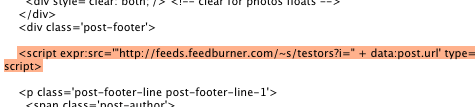
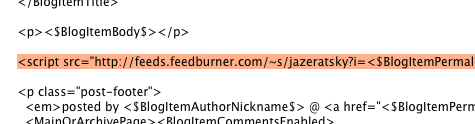
  4. In your template code, scroll to 
  5. Paste the code from step 1 just below 
  6. Click [Save Template].
    Click "View Blog" to see what you've done, and enjoy!

Editing Blogger "Templates"

  1. Copy this code:
  2. Click the "Template" tab. You should see the HTML for your blog template.

    template tab
  3. In your template, scroll down to 
  4. Paste the code from step 2 just above 
    pasting FeedFlare code into the blog template
  5. Click "Save Template Changes" and rebuild your blog.
  6. Click "View Blog" to see what you've done, and enjoy!

Customizing FeedFlare's Appearance on Your Blog

Your FeedFlare can be styled almost infinitely using CSS. Let's take a close look at how FeedFlare's output is structured:

There are a few interesting (and important) things to point out about this:
  • FeedFlare is wrapped in a 
     tag, so it will inherit the default paragraph styles in use on your blog. However, because it contains a class of feedburnerFlareBlock, you can style it however you want.
  • By default, FeedFlare uses bullets (•) as separators. But each one is wrapped in a tag, so you can hide them, restyle them, or make them dance at your leisure.
  • To aid your styling, we've applied a class of first to the first link.

How do I create a Blogger Feed?


  1. Enter your blog's web address in the "Ready to Burn?" form found on FeedBurner's homepage and at the bottom of the pages in the Blog and Podcast sections. If you plan to publish a podcast with your Blogger feed, check the "I am a podcaster" box. Click Next ».
    The Identify Feed Source page should appear.
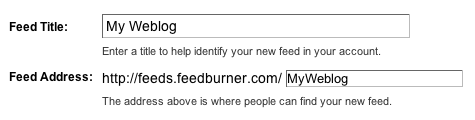
  2. On "Welcome", make sure the title and FeedBurner address (URL) of your new feed are values you prefer.

    The Create or Sign In To Your FeedBurner Account page should appear.
  3. Also on this page, create a FeedBurner account by picking a username and password and supplying your email address.
    When you've supplied all the required information on this page, click Activate Feed ». A "Congrats" page should appear.
  4. Read all of the information on "Congrats", then click Next » to continue with the setup process.
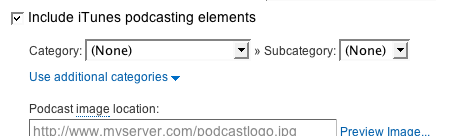
  5. If you selected "I am a podcaster" on the homepage, configuration options for ourSmartCast service will appear. Here you can supply categories and other information for iTunes, append a copyright message, and submit your podcast to Yahoo! Search.

    When you are finished, click Next ». Configuration options for FeedBurner stats services should appear.
  6. On the stats configuration page, select the level of feed stats detail you want.

    Click Next » to finish the setup process and enter our feed management interface.
    You're now ready to make your FeedBurner feed available on your Blogger site!

Tracking 100% of your feed traffic: Redirecting your Blogger feed to your FeedBurner feed

Blogger can make sure all feed traffic for your blog content goes to your FeedBurner feed. This ensures your FeedBurner stats are comprehensive and accurate; even subscribers to the 'Original Feed' are routed through FeedBurner. To redirect your feed:
  1. In a new browser window, sign in to your Blogger account.
  2. From the Blogger Dashboard, click the Settings link for the blog you want to promote.
    The Settings page for your selected blog should appear.
  3. Click the Site Feed link under the Settings tab.
  4. Type your complete FeedBurner feed address into the Post Feed Redirect URLtext field. Make sure you type in your entire feed address including the "http://" portion.
  5. Click Save Settings.
    You should see the message "Settings were Saved Successfully".
  6. Blogger will now redirect all feed traffic for your blog to your FeedBurner feed.
    Note: If you are using the redirection feature within Blogger to send all of your feed traffic to your FeedBurner feed, you may want to modify the code we provide in order to keep your subscribers with you, even if you leave FeedBurner.