Tuesday, July 10, 2012

8 Best Linux Terminal Emulators You May Have Never Heard Of


8 Best Linux Terminal Emulators You May Have Never Heard Of: For some Linux users, the terminal or command line shell is a useful and powerful tool that can help accomplish tasks (from simple to complex) in a more efficient and often quicker way. Although it is not a necessity anymore, I think it would still be handy to have some basic command line skills. To those of you who are afraid to use the Linux terminal, perhaps you should get or download some Linux/UNIX command cheat sheets.

Since majority of popular Linux distributions utilizes either KDE or GNOME desktop environment, you may have only used terminal emulators such as Konsole, GNOME Terminal, and xterm. But did you know that there are capable and unique terminal emulators for Linux other than those I've mentioned?

Here is a list of some of the best Linux terminal emulators you may have never heard of (in no particular order):


Terminator
Terminator is currently my favorite Linux terminal emulator. It allows me to easily organize multiple command line sessions into resizable split panes within the same window. This way, I can do some command-line multitasking in a more efficient manner, minus the desktop clutter. Terminator is written in Python, and it will work on any modern POSIX system with Java 5 or later, which means it can also run on other operating system platforms aside from Linux such as Windows and Mac OS X.


Guake
Guake is a top-down terminal emulator for GNOME Desktop Environment that has a design inspired by consoles in computer games such as Quake and Doom. It can quickly slide down from the top of the screen using a single keystroke, and can be hidden by pressing the same key. The advantage of using Guake when compared to the standard terminal is that it is faster to open since the program is already loaded into the computer memory.


Yakuake
Yakuake (Yet Another Kuake) is a drop-down KDE terminal emulator with features almost similar to that of Guake. Its design was also inspired by consoles in computer games. Like Kate, Konqueror, and other KDE applications, Yakuake depends on Konsole for its terminal functionality.


rxvt
rxvt is a simple and lightweight terminal emulator that is aimed to be a slimmed-down replacement for the already slim xterm, removing several of its little-used features, like Tektronix 4014 emulation and toolkit-style configurability. Apart from features like those controlled by resource files, the terminal emulation of rxvt differs from xterm in a few important ways.


Tilda
Tilda is a slide-down GTK+ terminal emulator similar to that of Guake and Yakuake. The program also runs invisibly in the background allowing it to quickly slide up and down once a hotkey is pressed.


mrxvt
mrxvt is a multi-tabbed terminal emulator based on rxvt that provides DEC VT102 compatible terminals. Like rxvt, it is fast, lightweight, and flexible without depending on desktop environments such as GNOME or KDE. The main features of mrxvt include multiple tabs, dynamically changeable tab titles, customizable command for each tab, input broadcasting, fast pseudo-transparency with tinting, user supplied background images, multi-language support, Freetype font, logging, and more.


Wterm
Wterm is a fork rxvt that is also very fast and lightweight. Its look was designed for NeXTSTEP style window managers like Window Maker. It has terminal support for Latin, Chinese, and Greek characters and features customizable background images, background color tinting, and zero overhead pseudo-transparent background.


aterm
aterm is the AfterStep terminal emulator for the X Window System that is based (again) on rxvt. As described from its project webpage, aterm is designed to provide pleasing visual effects, while performing such a mundane function as terminal emulation under X.


If you know of other capable terminal emulators for Linux that I fail to include on the above list, please share them with us via comment.

10 Essential UNIX/Linux Command Cheat Sheets


Linux has become so idiot proof nowadays that there is less and less need to use the command line. However, the commands and shell scripts have remained powerful for advanced users to utilize to help them do complicated tasks quickly and efficiently.

To those of you who are aspiring to become a UNIX/Linux guru, you have to know loads of commands and learn how to effectively use them. But there is really no need to memorize everything since there are plenty of cheat sheets available on the web and on books. To spare you from the hassles of searching, I have here a collection of 10 essential UNIX/Linux cheat sheets that can greatly help you on your quest for mastery:

UNIX Tutorial for Beginners
This is a quick and easy UNIX/Linux tutorial page that is aimed at beginners. It gives a subtle introduction to some of the most important UNIX/Linux commands.


Learning the Shell
Aside from showing you how to apply the most basic UNIX/Linux commands, “Learning the Shell’ will teach you the utmost importance of using the command line.


Learn UNIX in 10 Minutes
From the page: This is something that I had given out to students (CAD user training) in years past. The purpose was to have on one page the basics commands for getting started using the UNIX shell (so that they didn't call me asking what to do the first time someone gave them a tape).


FOSSwire Unix/Linux Command Cheat Sheet
A one page UNIX/Linux command reference that you can download in PDF format. You can easily print it, and then paste it on your wall.

UNIX Toolbox
From the page: This document is a collection of Unix/Linux/BSD commands and tasks which are useful for IT work or for advanced users. This is a practical guide with concise explanations; however the reader is supposed to know what s/he is doing.


Practical Linux Command Line Reference
This is another handy one-page cheat sheet for common command line operations. All of the commands have been tested on Fedora and Ubuntu.


How to Look Like a UNIX Guru
From the page: This lecture takes you through the basic commands and then shows you how to combine them in simple patterns or idioms to provide sophisticated functionality like histogramming. This lecture assumes you know what a shell is and that you have some basic familiarity with UNIX.


A Directory of Linux Commands (in alphabetical order)
From the O'reilly book “Linux in a Nutshell, 5th Edition”, it features an alphabetical list of 687 commands and a short description on each one of them.

Linux Security Quick Reference Guide
This quick reference guide (in PDF) will serve as your aid on improving the security of your Linux system. It provides some pointers to more in-depth security information that could help you become a good UNIX/Linux system administrator.


Bash Programming Cheat Sheet
From the page: A quick cheat sheet for programmers who want to do shell scripting. This is not intended to teach programming, etc. but it is intended for someone who knows one programming language to begin learning about bash scripting.


Through comments, feel free to share some links to other essential UNIX/Linux cheat sheets that I failed to include here.

How to install/upgrade/increase RAM


How to install/upgrade/increase RAM: Every once in a while, I will be posting an easy-to-follow and easy-to-do computer hardware and software tips and tutorials. My main aim is to provide in my own little way some technical help and advice to those who are still lacking the know-how on fixing or doing the most basic computer related tasks.

So here is my first uncomplicated tutorial, and it’s about the proper way of installing RAM:

What is RAM?
RAM is short for Random Access Memory. It is the area where your computer stores programs that you are currently running and data that you are currently working on. RAM is different from disk storage, e.g. hard-drive. Each and every one of your programs and data are held by disk storage whether you are running them or not. The moment you turn off the computer, the contents of RAM will instantaneously disappear, but the contents of your disk storage will remain in tacked. RAM is also different from ROM. ROM (Read Only Memory) are memory chips that have had data stored on them which cannot be changed at all. ROM chips can be usually found on a computer motherboard.

Why upgrade or increase RAM?

The main reason for upgrading RAM is speed. More and faster RAM means quicker and more responsive computer performance. Upgrading RAM is considered as one of the cheapest if not the cheapest way to speed-up a computer.

When to upgrade or increase RAM?

When your computer is running sluggish while performing memory demanding tasks like video and graphics editing, CD/DVD burning, or while running several applications simultaneously, then upgrading RAM is one of the best available solutions.

How to install RAM?
Before adding RAM, be sure to read these important tips and reminders first:

*If you have a new motherboard, check the owner’s manual or manufacturer, this is the sure way to purchase the correct type when you're adding computer RAM.

*If you want to add RAM to your current motherboard, the easiest way is to see which type of RAM you currently have. First open your computer case. Remove your current RAM by pushing down on both of the retaining clips holding the RAM in place. Your RAM should have the type and speed printed on it. That's the type you need!

*You can mix different memory speeds and sizes but not of different types. Like a DDR and DDR2 cannot be used together.

*Stand on uncarpeted flooring to reduce static electricity. Touch as little as possible inside your machine and especially avoid touching any computer chips. Static damage, and even oil from fingertips, may cause a failure months later.

Instead of illustrating the procedures on how to install, upgrade or increase RAM myself, I'm going to refer you to these existing good tutorial sites that can be found here and here. If you have some questions or needed extra help, you can always ask me later thru a comment. And then there’s always Google, when all else fails.
Why the Windows 8 Preview does not look good for IT administrators


 Microsoft Released the latest Windows 8 preview.
I have been reading some of the Microsoft blogs, and although this release still has the Aero interface (That glassy look)…according to a blog post by a Microsoft Employee this will be gone in the final release:
He even went on to say: “…(The Vista and Windows 7 Interface) looks dated and cheesy now”
It was released 3 years ago – not 20. I don’t see it as dated at all.
From an IT perspective this is quite alarming. This attitude tells me they really want to abandon everything and go with Metro 100%. I remember the headaches when they changed Office.
Users would quite often ask for the “old way it worked”..or “Where did all the menus go?”. I know users that still feel they were more productive in the older versions of Office.
If the Metro interface will be the only way to interact with Windows, then you are going to have a load of pissed off users out there.
Lets look at the new version:
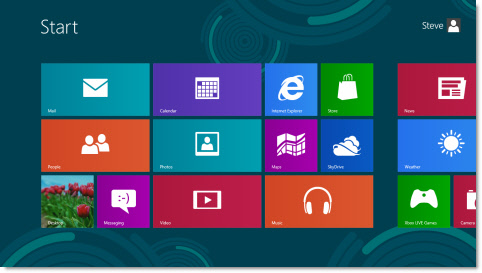
It has better driver support, and seems to be faster. Like the previous release, when you log in you are shown a tile view (This is called the Metro Interface) to navigate around:
New Shell Windows 8
You can get to the old desktop by clicking the “Desktop” tile in the bottom left.
The first thing you will notice, like the latest Windows 8 server preview, there is no start menu:
No Start Menu Windows 8
This fact is a source of constant frustration. Almost 20 years of clicking start is thrown out with this release.
Now that the start menu is gone, how can you easily get to the control panel?
There is no tile that says control panel, and when you go to the desktop, there are no links to it.
If things stay this way, imagine trying to walk a user over the phone to try and fix a simple problem…like say changing the DNS entries on their network card.
Thankfully our Remote Control 5 works perfectly with this release…so that might not be a problem if the computer is still on the network ;)
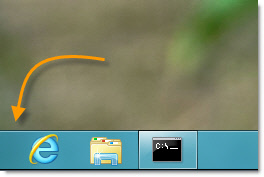
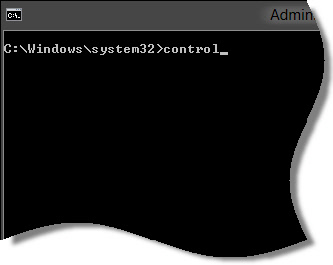
Eventually I made a shortcut on the desktop to the cmd prompt and used that to launch the control panel:
Windows 8 Control Panel Access
None of the control panel applets have changed, they are identical to Windows 7….so I won’t show them here.
Now back to what it will be like for the average user in your organization.
Most of the tiles you see on the main screen are links to Metro applications. These all run at full screen, and have a smoother look and feel to them.
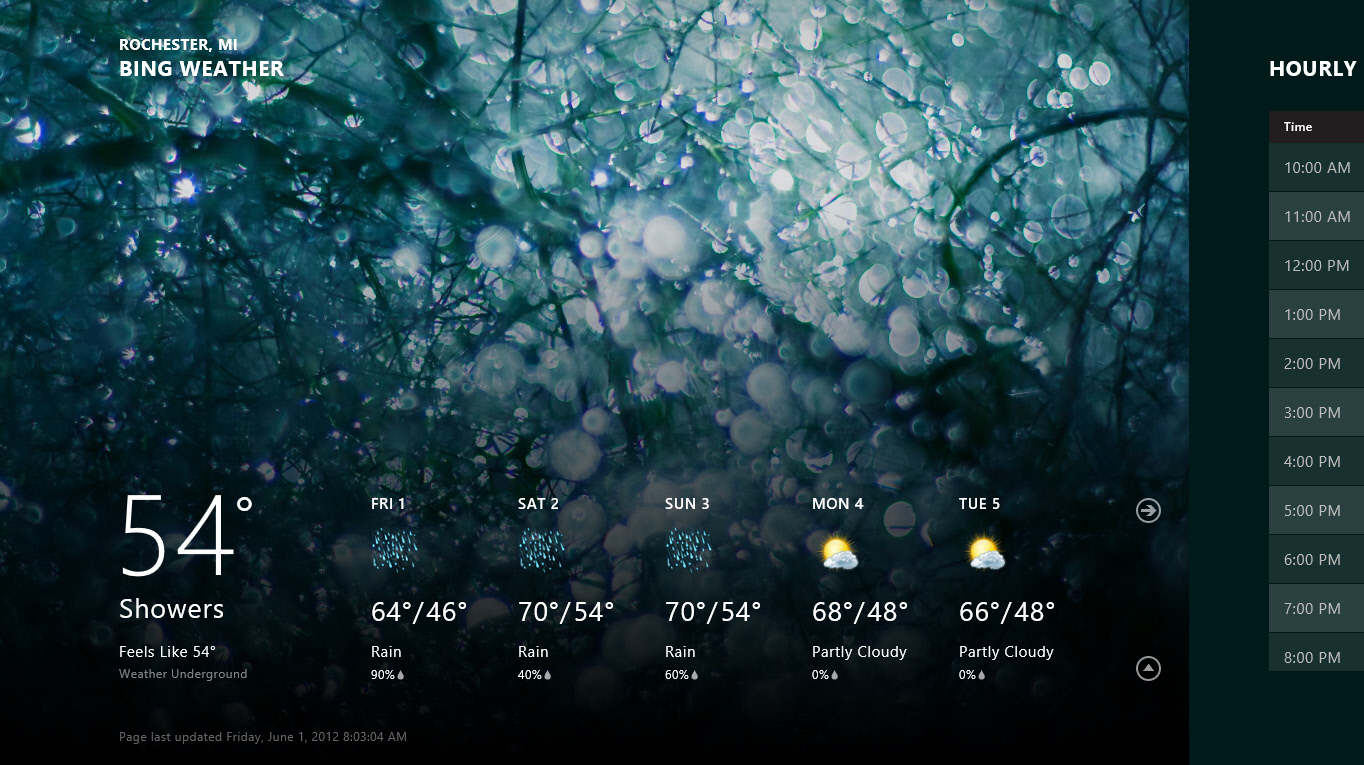
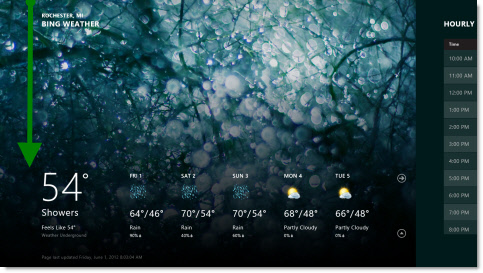
I want you to look at a metro app running on my system. Specifically the weather app:
Windows 8 Weather
I have a question for you…do you see an intuitive way to go back to the main screen?
It is none of the arrow buttons.
I tried swiping the mouse from left to right, top to bottom…nothing seemed to work.
To get back you have to click at the very top (not even a few pixels down) and drag down (If you have a touch interface you can swipe with your finger this way too):
Windows 8 Weather
This is sure going to be an exciting change for users. I can just see it now…the power button as a new way to exit Metro apps.
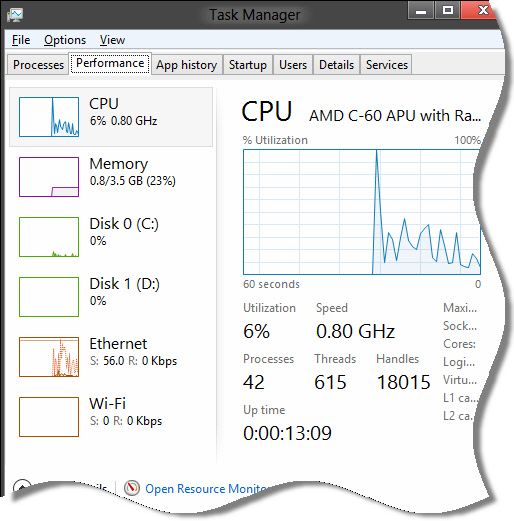
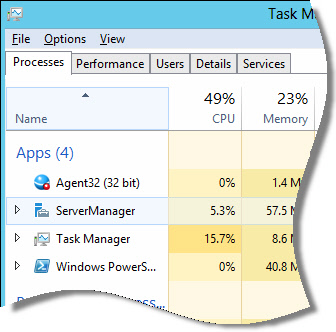
On the positive side, I like what they have done with the task manager. I don’t have the Windows 8 Server preview to compare, but it looks like they have added more functionality to this release.
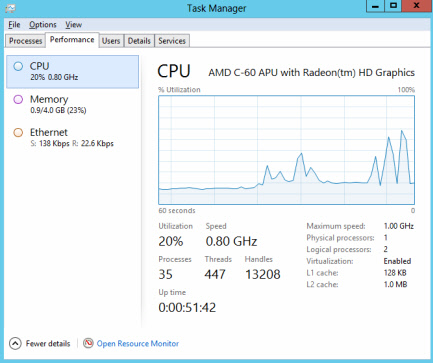
Look at the concise view they have of all system resource usage:
Many of the user interface design changes are very similar to the Windows 8 Preview I talked about a few weeks back..so I won’t repeat them again. Most of these are great improvements, but they are totally overshadowed by the huge change that the Metro interface brings to the table.
It really is a sad fact that the Metro Interface is a change will haunt you for years…just to make it look different.
I think it is a big mistake. If you don’t agree, ask yourself…when was the last time users in your company or organization were jumping for joy when you made a massive change to the way their computer worked.
For me the answer is never.
Why not go with both? Metro for touch based systems, and classic for mouse and keyboard.
Someone is going to make a mint creating a classic interface for Windows if Microsoft does not include one.
You can download a copy of the Windows 8 Preview Here:

Windows Server 8 Preview


Microsoft has released a public beta of Windows Server 8. You can get a free copy from here:
It can’t run in most virtual environments, so if you are going to try it out…you will probably need a physical machine.
The first thing I noticed – There is no start menu:
No Start Menu
While digging around I found this point very frustrating. I kept clicking that empty space on the far left of the task bar. I can bet if they leave it this way, there will be third party solutions to bring it back :)
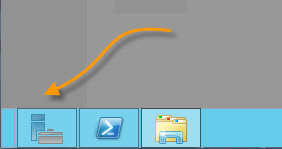
Because the start menu is missing, everything is accomplished through the server manager. This new interface is quite powerful. How many times have you jumped on a server and need to stop and start a particular service right away?
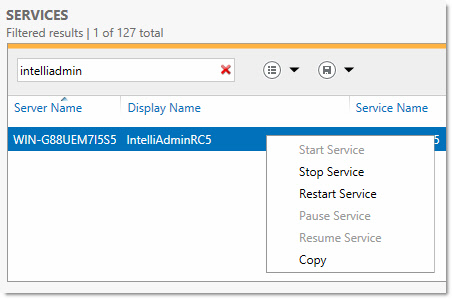
You can easily drill down to a service just by typing its name:
New Service Management
As you can see, I was testing our Remote Control – and thankfully it works perfect under this beta of Windows 8.
There are other dashboard controls just like this for events, performance, rolls and features, and even a best practices analyzer.
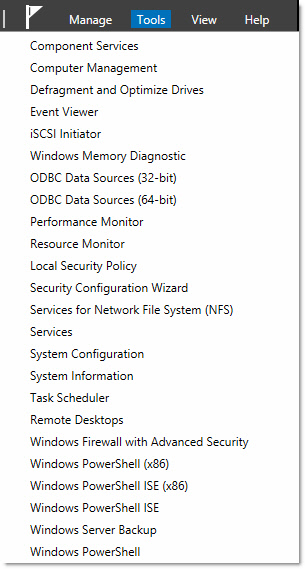
All the tools you would use in day to day administration are conveniently located on the tools menu of the server manager:
Windows 8 Server Tools
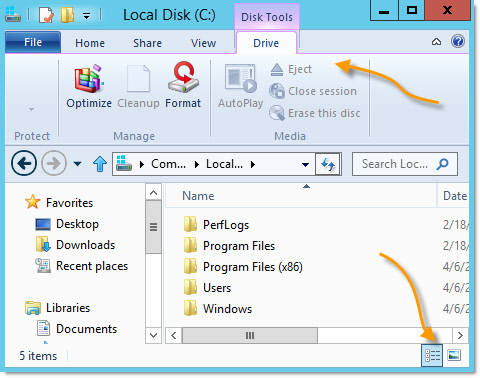
They are making changes to explorer too. Commonly accessed items are available right from the folder view:
Windows 8 Explorer Changes
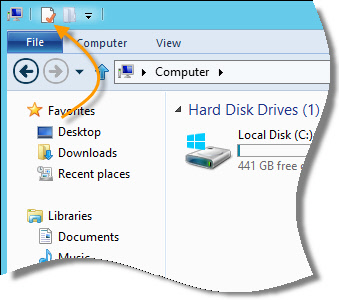
Accessing the properties of a folder can now be done in one click:
Folder Properties
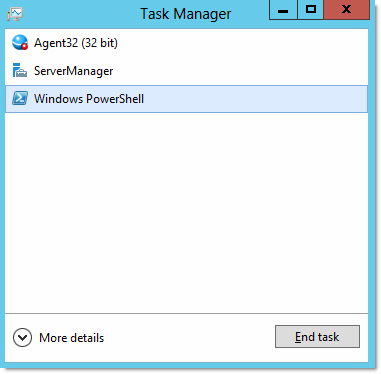
When I first opened task manager I was shocked:
Task Manager Windows 8
I thought “That’s it?” What are they doing?!?
But I was pleasantly surprised when I clicked the “More Details” button:
Task manager more details
On another tab, they have beautiful performance graphs:
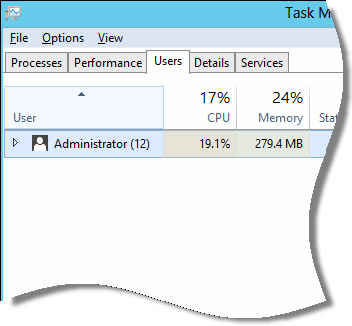
The users tab is great, it shows performance, memory usage by user:
Users Graph
It would really help when you are trying to figure out who is hogging all the resources on the Terminal Server :)
I can imagine a lot will change before the final release, but it is worth checking out to see where Microsoft is headed with the next version of Windows.

Clear a forgotten Windows Password


A friend of mine forgot his password for his Windows 7 computer, and needed to get back into it. I remembered years ago when I was working as a contractor, there was a little Linux utility that would allow you to boot from a floppy and reset windows passwords
Lucky for him, that utility is still around, and it has been updated to work with Windows 7, and Windows 2008.
It is called the “Offline NT Password & Registry Editor”
The website can be found here:
http://pogostick.net/~pnh/ntpasswd/
First, if you are going to use this utility, a word of warning. If a user has EFS encrypted files, and you reset their password, those files will become junk and you will never be able to open them again.
To reset passwords, download the latest zip from the website above, and open it up. There will be an ISO file that you can burn to a CD.
Boot to it, and you will see all kinds of commands scream across the screen. Then you need to answer some questions.
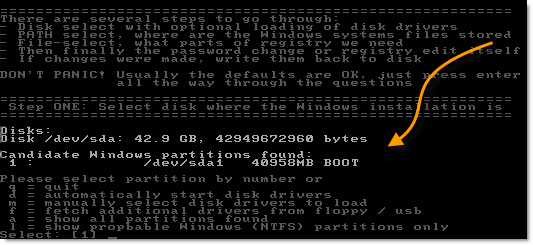
First, it will ask which drive your Windows install is on. You can see the drives and the selection numbers here:
Reset Password Drive
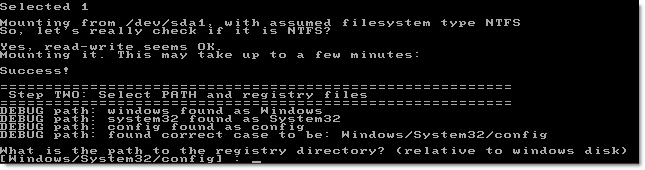
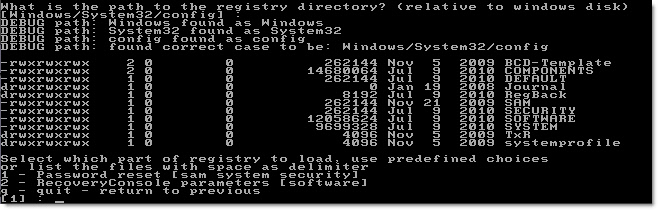
Then it will ask you for the registry location. Just pick the default by pressing enter:
Registry Location
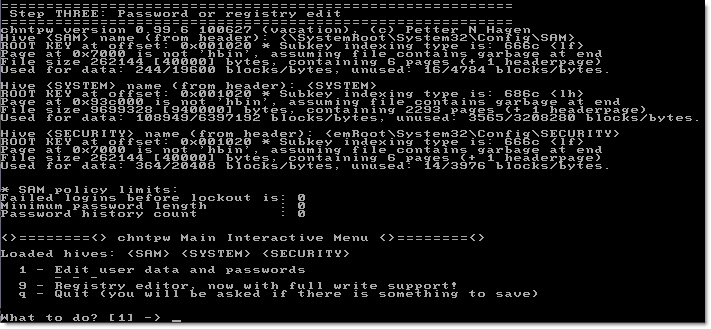
Now that it has all the info it needs, you select your action. We want to reset a password – so we pick the default by pressing enter (Password Reset)
Password Reset SAM
And finally, what we have been looking for – editing the user data. Notice it has a registry editor too. Something that can come in handy with other issues. So pick the first option by pressing enter:
Edit User Data
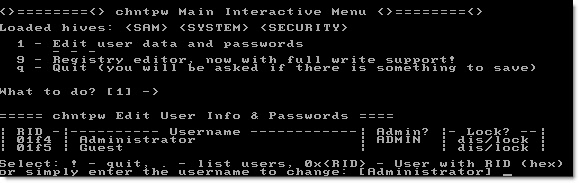
Then pick the user account you want to edit (Usually you can just hit enter here too – since administrator is usually the default)
Pick User Account
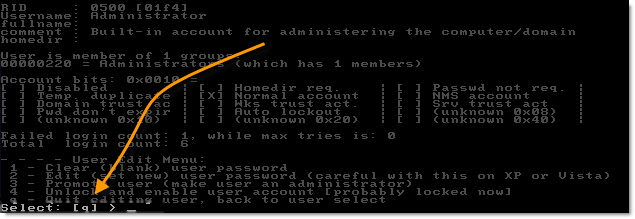
OK. Here is where you need to stop and pay attention. Every option so far has been the default, and you could select it by hitting enter. If you don’t watch carefully…the final option that you want (clearing the password) is *not* selected by default. Quit is.
I am not the brightest bulb in the bunch, and I ran through it a few times by just hitting enter all the way through…and then tried to get in with no password. Grrr Not working. Until I slowed down and read each step, I realized my mistake.
Clear Password
Pick the clear password option. Option 1. Avoid the temptation to reset the password, and set to a new value. Many times this does not work. Just clear it, login with an empty password, and then you can reset once you are back in windows.
Notice too that you can elevate, and unlock accounts – comes in handy when users forget their password, and lock themselves out.
Can’t tell you how many times this little gem helped me look like a hero back in my contracting days. Glad to see it is still alive and kicking.

A Free Windows File Copy Alternative


If you have ever copied a large number of files on Windows, you know how frustrating it can be.
Sometimes a simple error can cancel a huge job.
Sometimes you might start a copy before leaving the office…only to find out that 10 minutes into it, Windows asks you if you want to replace a file.
Don’t even get me started with the estimated time to complete dialogs – totally worthless.
Found a solution – It is a free tool called TeraCopy.
The part I like about it is that it is lightweight, and it is only for copying files.
Nothing else.
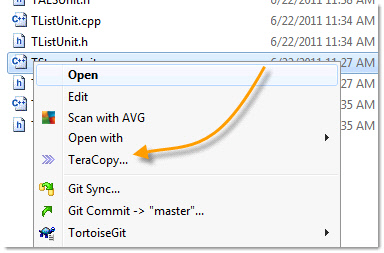
You can easily access it from any folder or file. Right click, and send to TeraCopy…could not be easier:
Tera Copy Context Menu
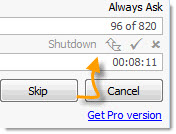
What if you want to copy your files and then shutdown your system? You can easily tell TeraCopy to do that:
Tera Copy Complete Options
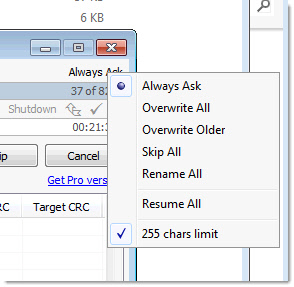
What about those replace or skip dialogs? You tell it what to do – without waiting 5 minutes for it to ask you:
Tera Copy Options
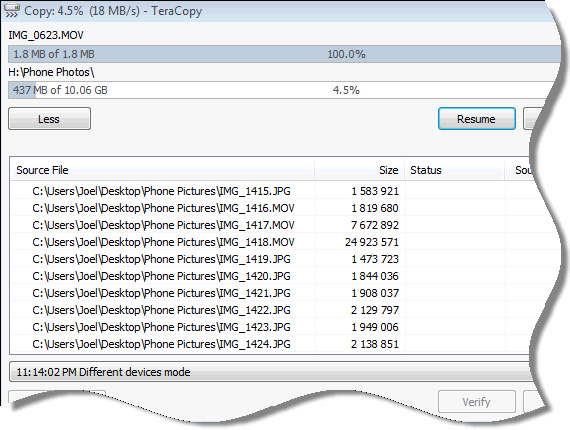
Even better, you can pause, and resume file copies. Can’t tell you how many times I wanted to do this to take the load off the network for a minute or two:
Tera Copy Main Window
This is an awesome little utility. Works on 2000 through Windows 7 x64.
You can download it from here: